Set or Change Your Password
Create a password so you can log in faster.
Note: A password is optional. You can always log in with a one-time code instead.
1
Go to the Set Password Page
After logging in, click your name in the top-right corner.
Then click Change Password from the menu.
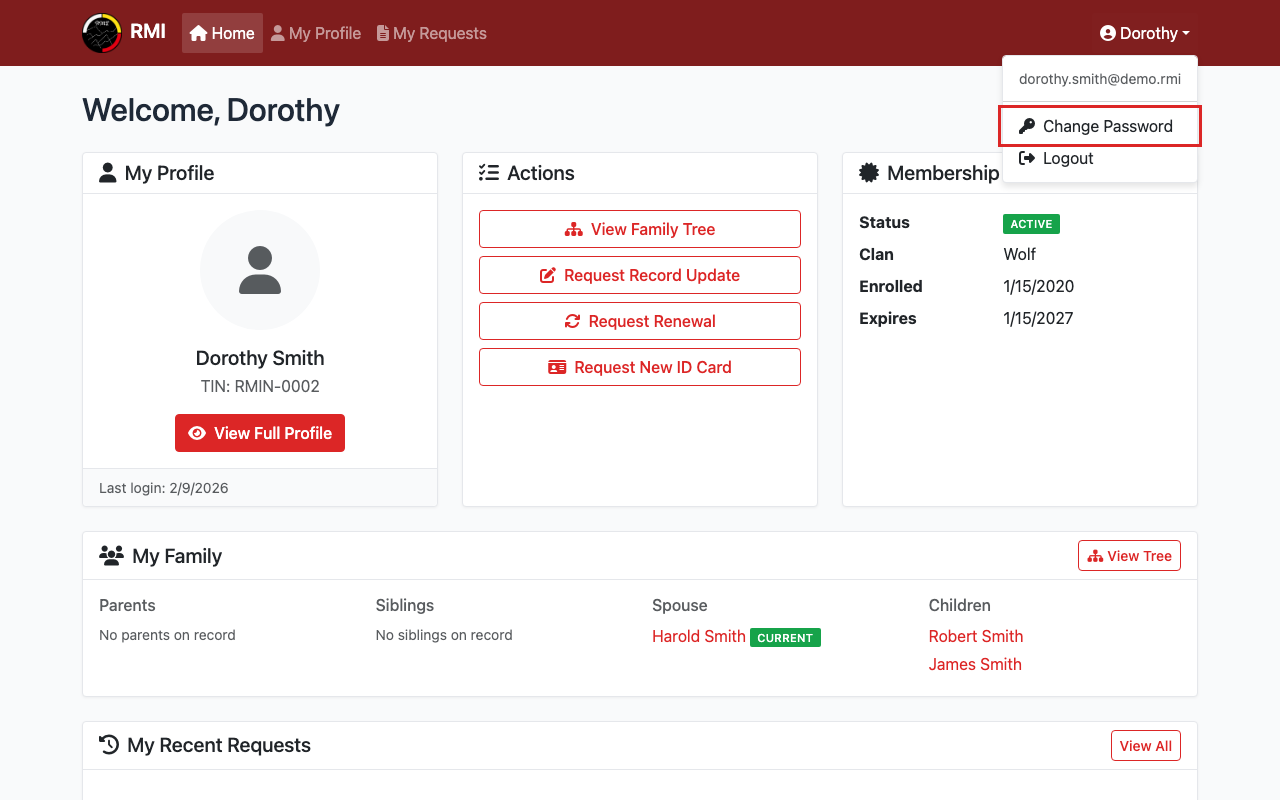
Click your name, then click Change Password.
2
Enter a New Password
Type your new password. It must be at least 8 characters.
Type it again in the Confirm Password field.
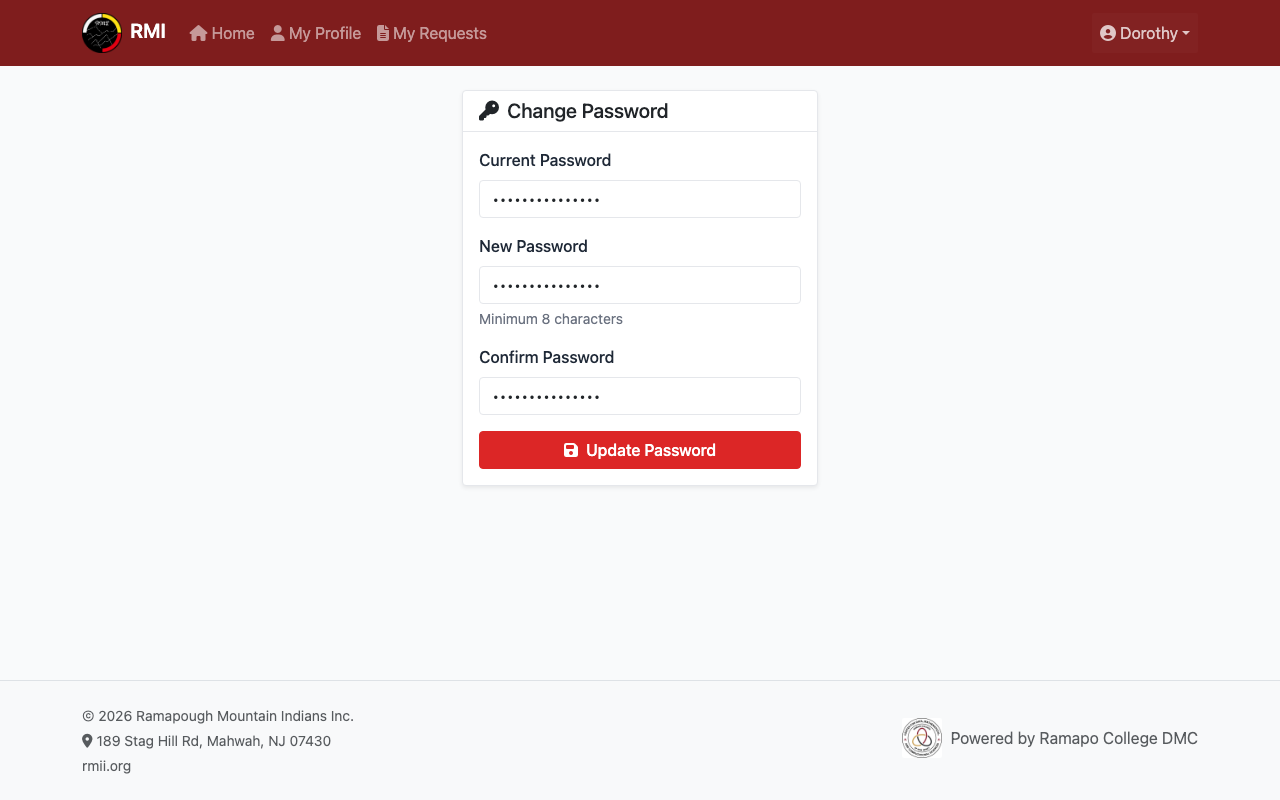
Enter your new password twice.
3
Click "Set Password"
Click the Set Password button to save.
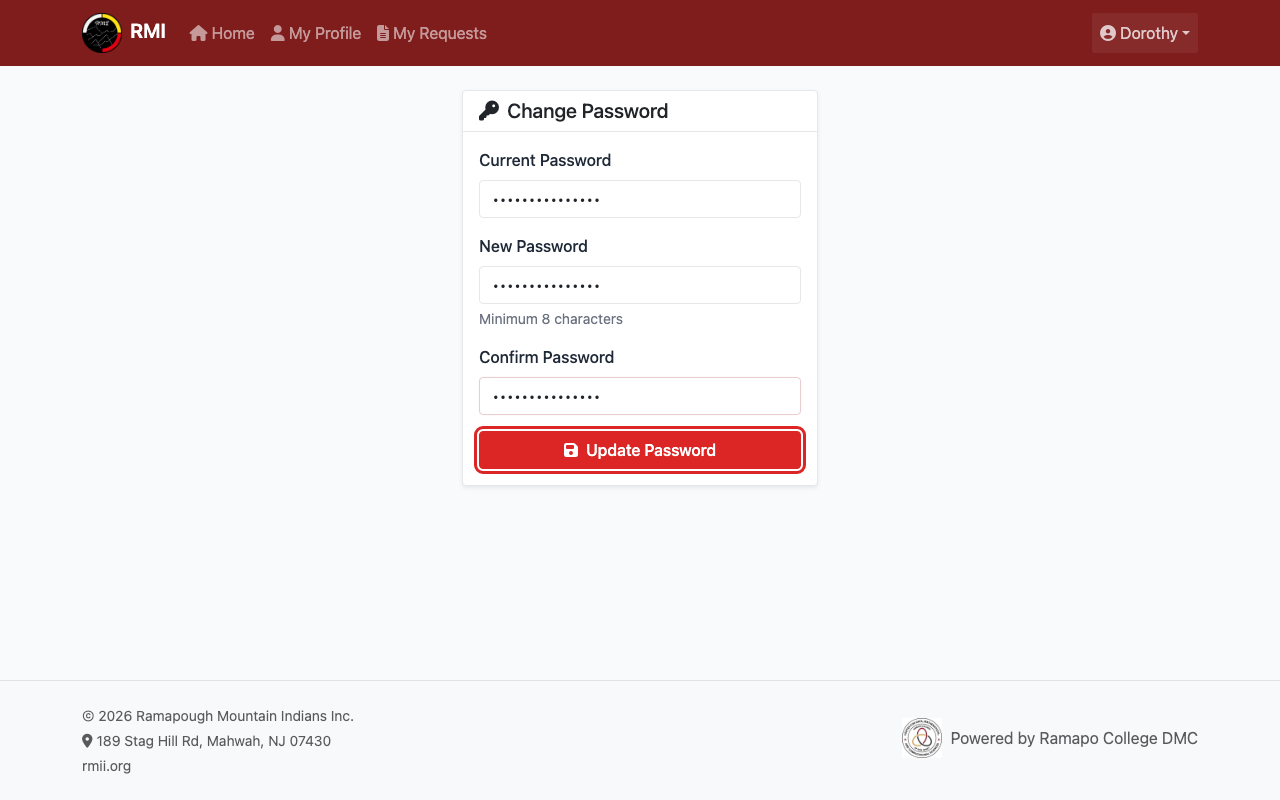
Click Set Password to save your new password.
4
Your Password Is Set
You will see a success message. Your password is now saved.
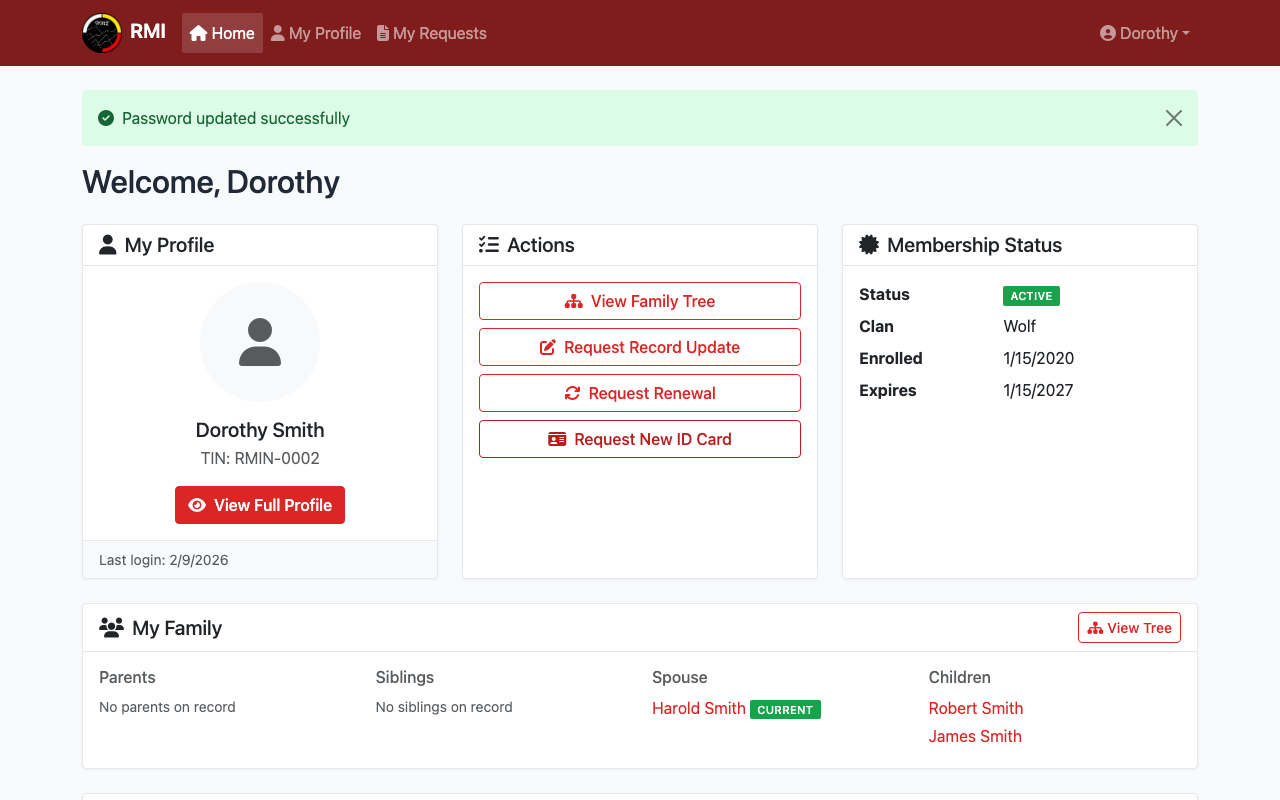
Your password has been saved.
5
Log In with Your Password
Next time you log in, enter your email, phone, or Tribal ID Number.
Then type your password and click Login.
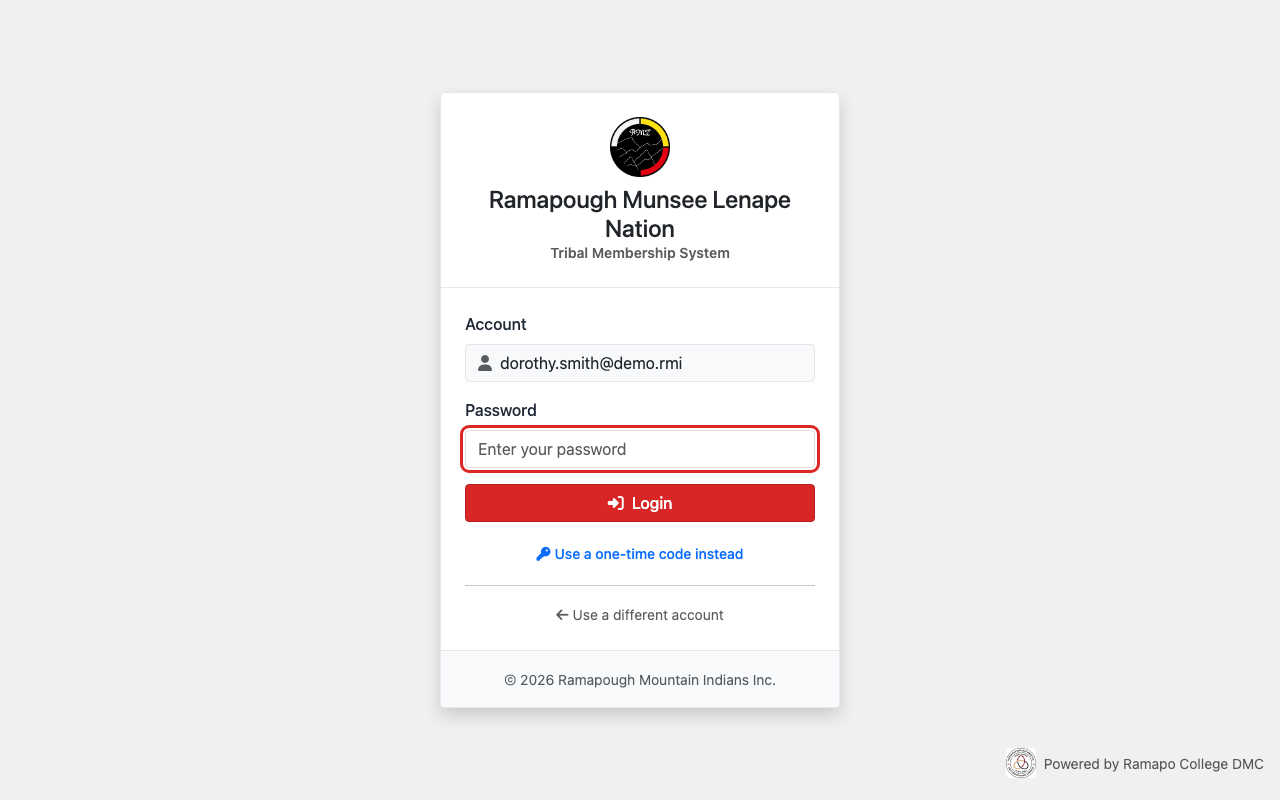
Enter your password to log in.
What's Next?
- View your profile to see your membership details.
- Find your Tribal ID Number in your account.